

.avif)
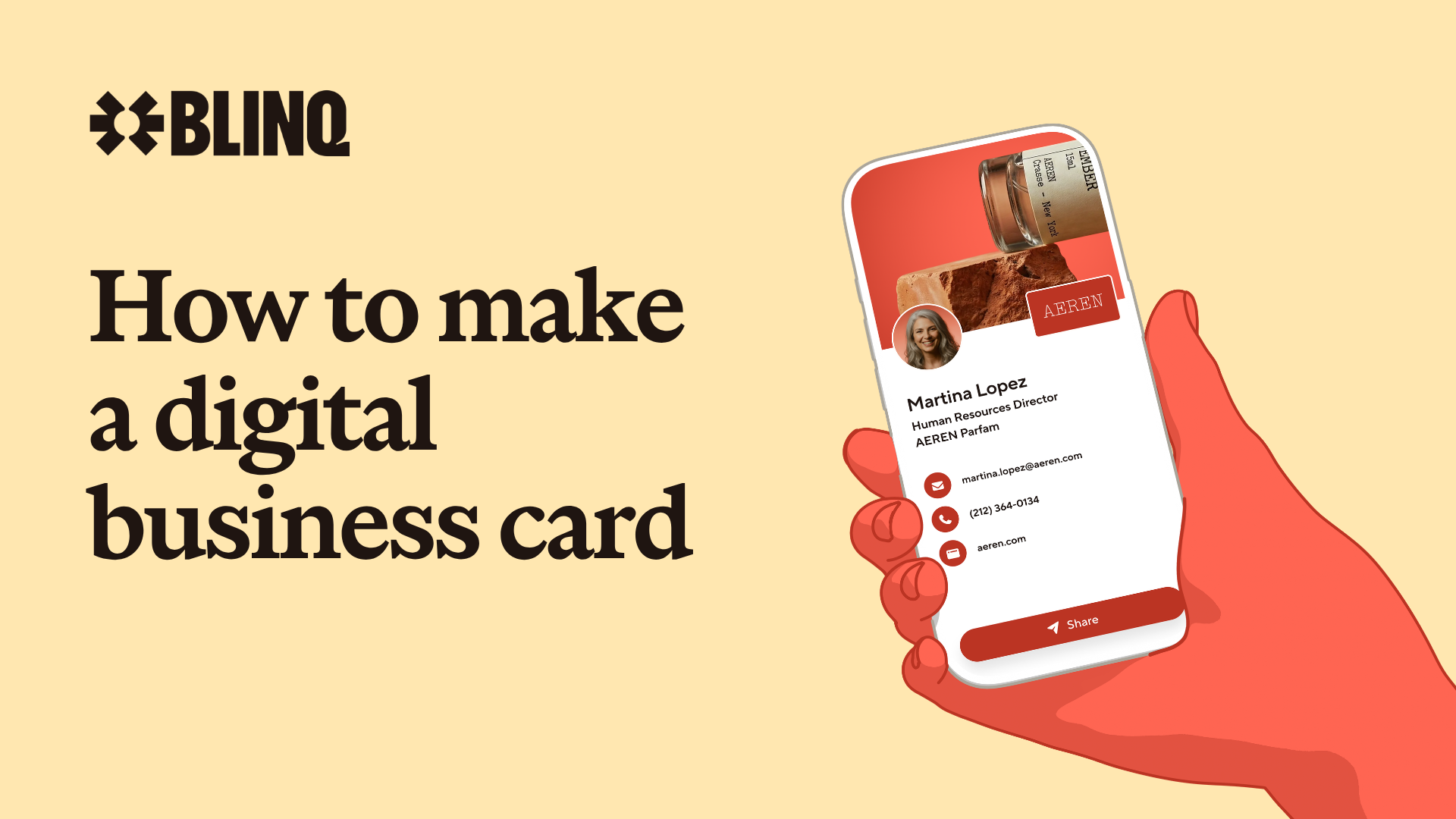

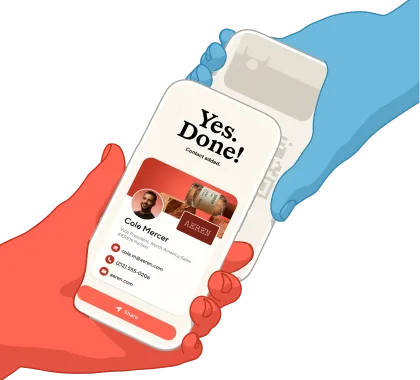
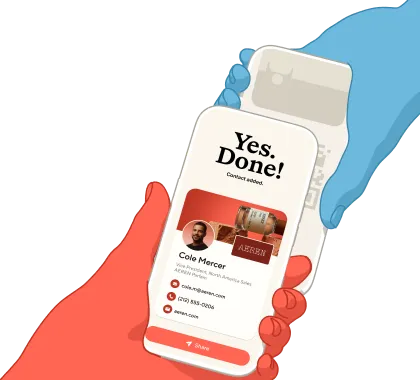
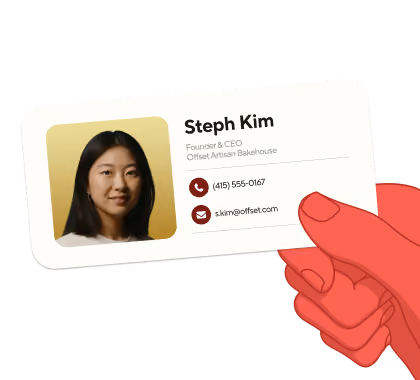
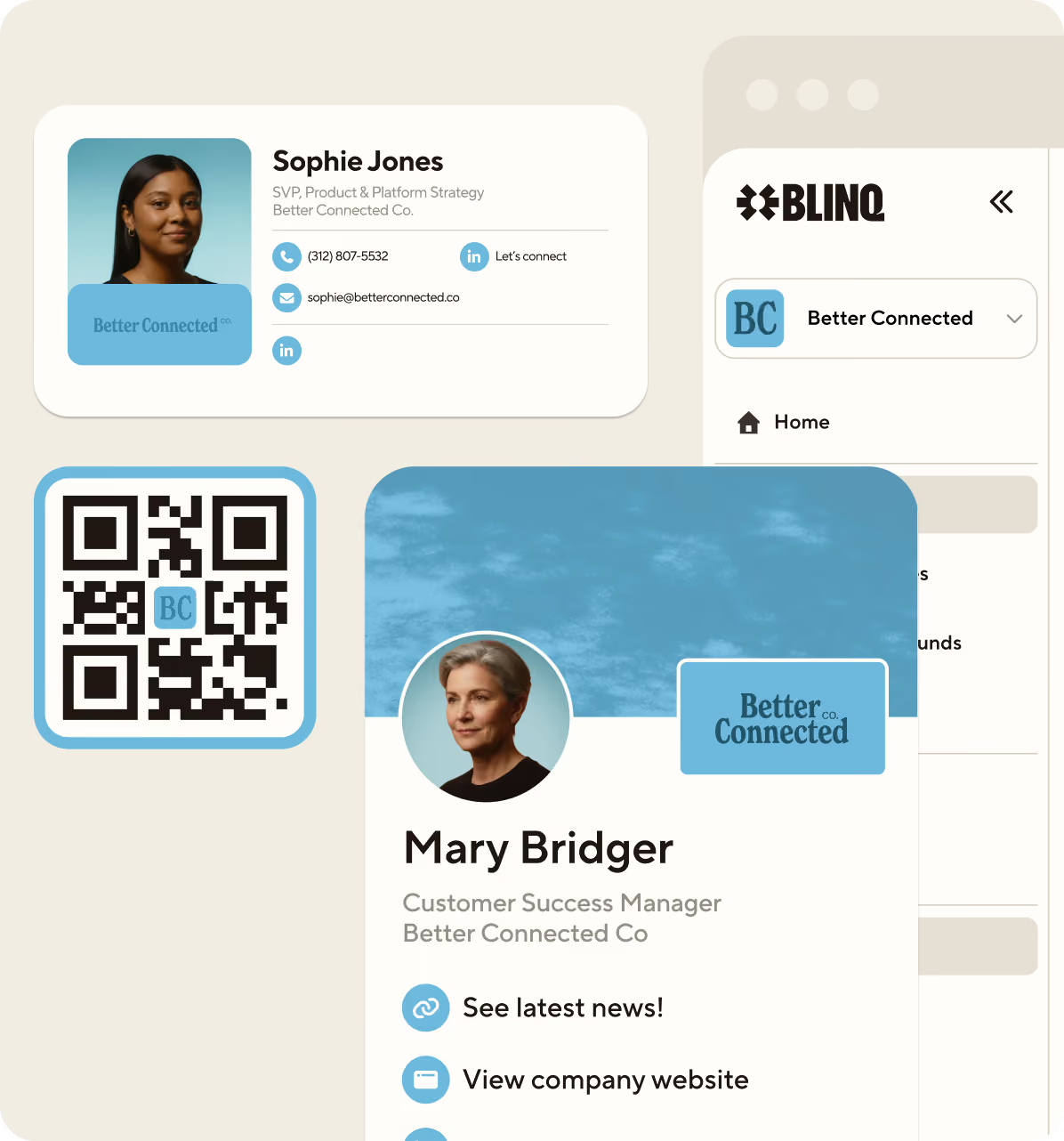
A paper business card has a short life. Most get thrown out within a week, and the details printed on them go stale the moment you change a job, a number, or a company. A digital business card fixes that. It's a live contact card on your phone that someone opens by scanning a QR code, tapping their phone, or clicking a link, and your name, photo, contact details, and social links land on their device right away.
Having made plenty of these, I'll let you in on the thing most guides skip: the hard part isn't building the card, it's getting the other person to actually keep it. So this article covers both. The fastest route to a card is a free app like Blinq's digital business card: download it, add your details, and share. You'll have a working card in about two minutes, on iPhone or Android, for free. Your recipient doesn't need to download anything to receive it or save you to their contacts. Below, we'll cover the steps, compare the other ways to make one, and show how to share it so people actually keep you, and so you walk away with their details too.
Key Takeaways (TL;DR)
- A digital business card is a live, shareable contact card on your phone. Update it once and everyone who already has it sees the change.
- The quickest method is a free app like Blinq. You can build and share a card in about two minutes on iPhone or Android.
- There are other routes. Your iPhone's built-in NameDrop, a QR code generator, or a design tool like Canva can work too, though each comes with trade-offs we cover below.
- You can share by QR code, link, NFC tap, NameDrop, email signature, or Apple and Google Wallet. The person receiving your card never needs an app to save you.
- A good card works both ways. When someone opens yours, you can capture their details too, so you walk away with the contact.
What is a digital business card?
A digital business card is a contact card that lives on your phone instead of in your wallet. You'll also see it called a virtual business card or an electronic business card, but they all mean the same thing. Rather than handing over a printed card, you share a QR code, a link, or a tap, and the other person gets your details on their screen and saves them in one go. Because the card is hosted online, it's always current. Change your title or number once and every card you've already shared updates automatically.
The best digital cards do more than paper ever could. One scan can carry your phone, email, website, LinkedIn, Instagram, a calendar booking link, even a payment link. And the good ones capture the other person's details back, so the exchange isn't one-directional. That's the difference between a static file and what we call contacts with context: a contact record that remembers who you met, where, and what mattered.
Why use a digital business card?
- Paper cards die. Physical business cards get trashed, go out of date, and rack up printing costs every time your details change. A digital card updates everywhere the moment you edit it, at no extra cost.
- A digital card carries more. One scan can hand over every link, social, and booking page you want to share, not just a name and number.
- It works in both directions. When someone opens your card, you can capture their details too, so you leave with a contact instead of hunting for their email later. Blinq even remembers when and where you met, something Apple Contacts can't do.
It's a small change with a real payoff. More than 4 million people, across 500,000 companies and 93% of the Fortune 500, already share their details this way.
How to make a digital business card in 5 steps
The steps below use Blinq, the #1-rated digital business card app, because it's free and it's the quickest path from nothing to a card you can share. The same idea applies to most apps.
Step 1: Download the app and create your free card
Head to the App Store or Google Play and search for Blinq. Install it, open it, and sign up with your work email or Google account so it takes about ten seconds. When the app asks if you want to create your first card, tap create. The free plan includes up to two cards, which is worth remembering, because a second card comes in handy for a different persona later.
Step 2: Add your details
Start with the basics: name, job title, and company. Then add a profile photo and your company logo. Don't skip the photo, and this is the step I see people rush most. A card with a face on it gets remembered far more often than one without, and as you'll see below, your photo does real work at the moment someone saves you. Now add your contact details: phone, email, and website. Stick to the ones you actually use, since an empty field is better than a number or link you never monitor.
Step 3: Add your links and socials
This is where digital leaves paper behind. Add the links that matter: LinkedIn, Instagram, a portfolio, a calendar booking link, even a payment link. A scheduling link is especially useful. Someone can scan your card, tap "book a meeting," and land on your calendar while they're still standing in front of you. Change or swap any link later and everyone who already has your card sees the new version instantly.
Step 4: Customize the design
Make it look like you. Pick a color or theme that matches your brand and add your logo. Keep it clean: a clear photo, one brand color, and only the links worth including. If your company rolls out Blinq across the team, your branding may already be locked in. Solo users still get plenty of styles to choose from.
Step 5: Share your card
Your card is ready. You can share it a few quick ways: pull up the QR code for someone to scan, send the link by text, email, or social bio, drop it to another iPhone with NameDrop, or tap your Blinq NFC card on someone's phone if you have one. There's more on each method below.
Other ways to make a digital business card
A dedicated app is the fastest route, but it isn't the only one. Here's how the common methods compare.
For most people, the app route wins on speed and on the things paper and images can't do: live updates, one-tap saving, and capturing the other person's details. If you only need to swap numbers between two iPhones standing together, NameDrop is fine. For anything you'll share at events, in email, or online, a real card pays off.
How to share your digital business card
Once your card exists, sharing takes seconds. Your options:
- QR code: pull it up and let them scan it with their camera. They don't need WiFi or an app, and because the card is live, the same code keeps working even after you update your details. One bonus for events, where venue signal is notoriously bad: Blinq automatically switches your QR code to a version that works offline when it detects a weak connection, then switches back, so a dead signal mid-handshake doesn't make your share fail.
- Share link: drop it into a text, your LinkedIn bio, a Slack profile, a free email signature, or a virtual meeting background. Anywhere a link can live, your card can live. You can even embed it on your website.
- NFC tap: tap your Blinq NFC business card or accessory, like a sticker, wristband, or keychain, on someone's phone, and your card opens on their screen. They don't need an app to save you.
- NameDrop: on an iPhone, open your card, tap the “Share” button, select “Share card with NameDrop”, and hold your phone near another - no scanning or link needed.
- Wallet, widget and Apple Watch: add your card to Apple or Google Wallet and it's one button away, sitting next to your credit cards so a double-click of the side button brings it up. You can keep it a swipe away with a home or lock-screen widget on either platform, and if you wear an Apple Watch, your card lives on your wrist too. To add it to your wallet, open your card, tap send, and choose add card to wallet.
One thing worth keeping in mind: the person receiving your card doesn't need to download anything. And it works both ways. You can capture their details back, complete with where and when you met, then sync that contact into your CRM, like HubSpot or Salesforce, on Blinq's Business and Enterprise (team) plans, so a good conversation doesn't get stuck in your phone.
What actually makes someone save your card
This is the part most how-tos leave out, and it's the part that decides whether making a card was worth it. Building the card is easy. Getting it into the other person's phone before the moment passes is the real job.
The mechanics matter more than you'd think. When a share opens a personalized mini-card with your photo on it and drops straight into the phone's native "Add Contact" screen, there's nothing to download and saving takes a single tap. Seeing a face makes it feel personal, and in Blinq's own data cards shared that way are saved around 98% of the time. The only misses now are people who tap "cancel" instead of "save."
The lesson holds whatever tool you use: the fewer steps between the share and the save, and the more human that moment feels, the more contacts you actually keep. That's why the photo from step 2 matters, and why a clean card with a clear face beats a busy one.
Tips for a digital business card people actually save
- Use a real photo. Faces get remembered, and they do more than that. Because the save flow shows the other person a mini-card with your face on it, seeing you is part of why so many people finish saving. A logo on its own rarely has the same effect.
- Lead with the links that matter. Three useful links beat ten you never check.
- Make more than one card. A work card with your title and booking link, a side-project card with your portfolio, a personal card that's just your number and socials. Free users get up to two cards; premium takes you to five.
- Add a booking link. Letting someone book time while you're still talking is the easiest follow-up you'll ever set up.
- Capture them back. A card that only shares your details is half a tool. The point is to walk away with their contact too, which is what makes the difference at events and trade shows.
Frequently asked questions
Is it free to make a digital business card?
Yes. With Blinq you get a free digital business card, including up to two cards and every sharing method. Paid plans add more cards, deeper customization, and team features.
How do digital business cards work?
A digital business card is hosted online and shared by QR code, link, or an NFC tap. The other person opens it on their phone and saves your details in one tap, with no app to download. Because it's hosted online, you update it once and every card you've already shared shows the new version. The best ones also let you capture the other person's details back, so the exchange works both ways.
Do people need an app to receive my card?
No. The recipient doesn't need to download anything. A QR scan or a link opens your card and lets them save you straight to their contacts.
What's the best way to share contact info at a conference without paper cards?
Lead with a QR code or an NFC tap. Pull up your card's QR code for someone to scan with their camera, or tap your NFC card on their phone, and your details open instantly, with no app required. A booking link lets them schedule a follow-up on the spot, and you can capture their details back so you leave the conversation with the contact rather than a card you might lose. If venue signal is patchy, Blinq switches your QR to an offline version automatically so the share still works.
Can I make a digital business card on iPhone and Android?
Both. Blinq has native apps for iOS and Android, plus a web dashboard, so you can build and manage your card anywhere. Here are the walkthroughs for iPhone and the best options on Android.
Does my QR code change when I update my card?
No. The code and link stay the same. Update your details and the same QR keeps opening your latest card, so anything you've already printed or shared still works.
Can I connect my digital business card to my CRM?
Yes, on the Business and Enterprise plans. Blinq offers native sync with 20+ CRMs, including HubSpot, Salesforce, and Pipedrive, so the details and context from a meeting land in your pipeline automatically. The free and individual Premium plans don't include native CRM sync. Here's how to connect Blinq to your CRM.
What's the best digital business card app?
That depends on what you need, and we compare the top digital business card platforms in our guide to the best digital business cards. Blinq is rated #1 in digital business cards on G2 and holds 4.9 out of 5 across more than 150,000 App Store and Google Play ratings, and it's used in 189 countries.
Make your card before your next meeting
That's how to make a digital business card: pick your method, add your details and links, and share it by QR code, link, tap, or wallet. The app route gets you there in about two minutes, keeps your details current, and hands you the other person's contact too. Create your free card and you'll be ready before your next handshake.