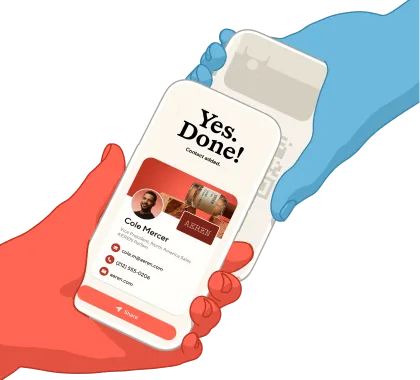
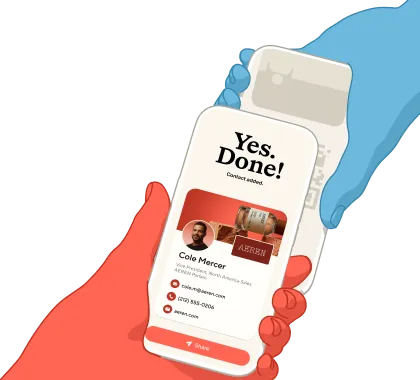
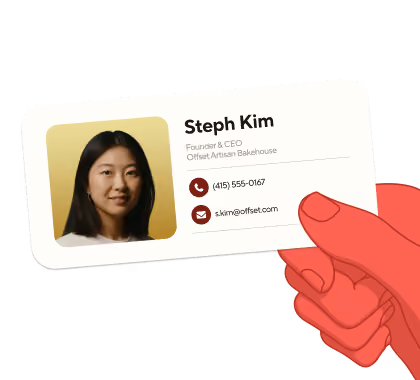





“Let’s stay in touch” is a good sign. You’ve had a conversation worth continuing. Now you need an easy way to hand over your details.
A metal business card gives that moment something tangible: a considered design, your name, and a card you’re proud to pull out of your wallet. With Blinq, it also gives the person you’ve just met a way to save your details straight to their phone. Tap to share, exchange details, and keep your card ready for the next introduction.
Making a metal business card is straightforward. Choose a finish, add your branding, approve the design, and connect the finished card to your Blinq digital business card. Here’s how to get both parts right: the card in your hand and the details they take away.
Key Takeaways (TL;DR)
- Create a metal business card that feels like you. Choose your finish, add your logo and name, and review the design before ordering.
- Keep the physical design simple. Your Blinq digital business card can hold your contact details, website, social profiles, and booking link.
- Tap, connect, and keep your card. Blinq’s metal NFC cards let you share your details with a tap or QR scan. The person you meet doesn’t need the Blinq app.
- Update your details without replacing your card. Changes to your digital profile appear on future taps and scans. No paid subscription is required for basic sharing.
What makes a metal business card useful
A traditional metal business card works like a paper one: your details are engraved on it, and you hand it over. A metal NFC business card is reusable. You hold it near a compatible phone to share your digital business card, then put it back in your wallet.
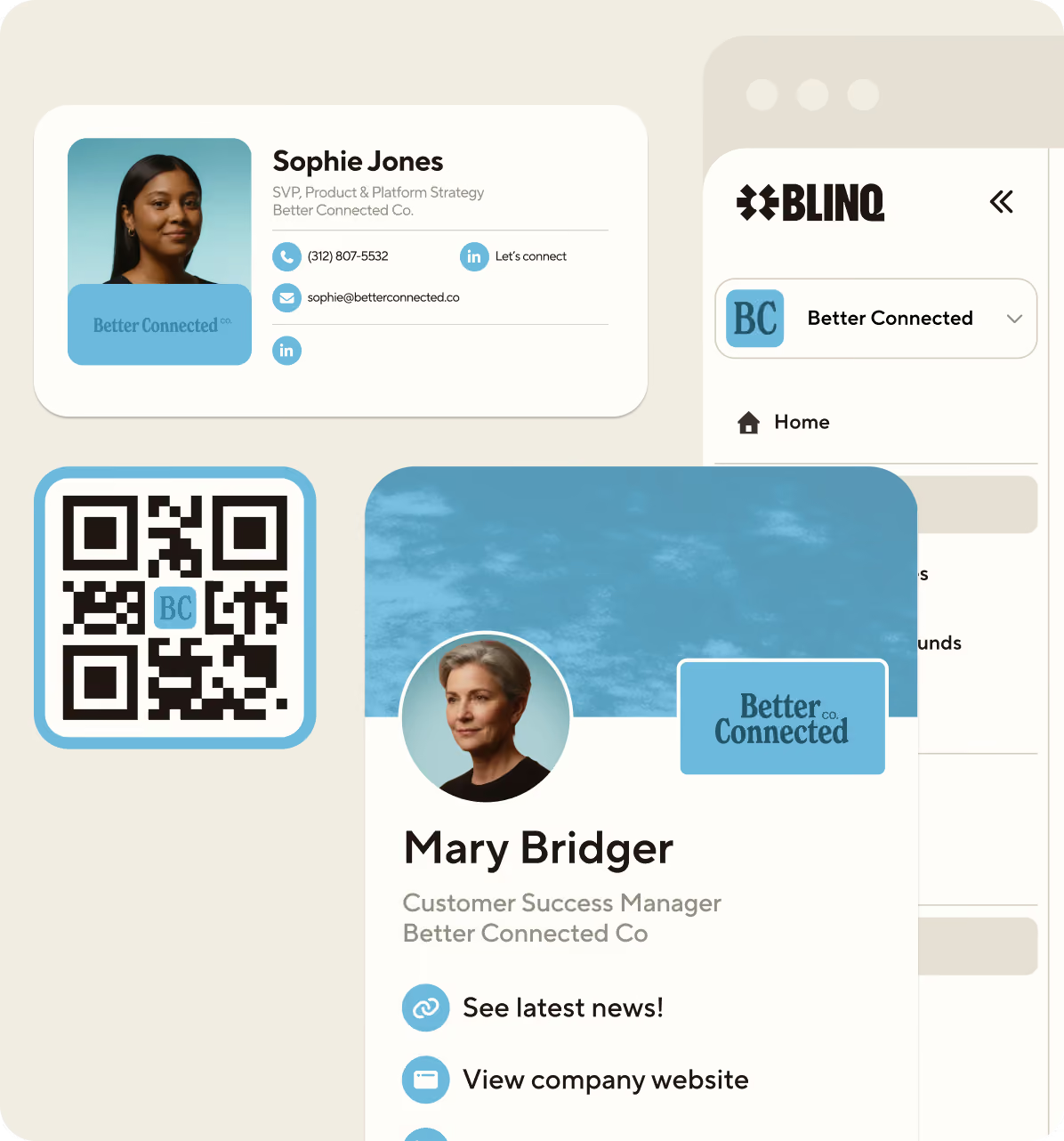
Because your contact details live on your digital card, you can keep the metal card’s design simple. Your logo and name can take the lead, while your digital card carries your phone number, website, social profiles, and booking link. The person you meet can save your contact and share their details back, without downloading the Blinq app.
It also means your card can keep up with you. When your contact information changes, update your digital profile and future taps or scans will show the new details.
How to make a metal business card with Blinq
Design your own Blinq Custom Metal business card. You don’t need engraving equipment or a separate printing company.
1. Choose your finish
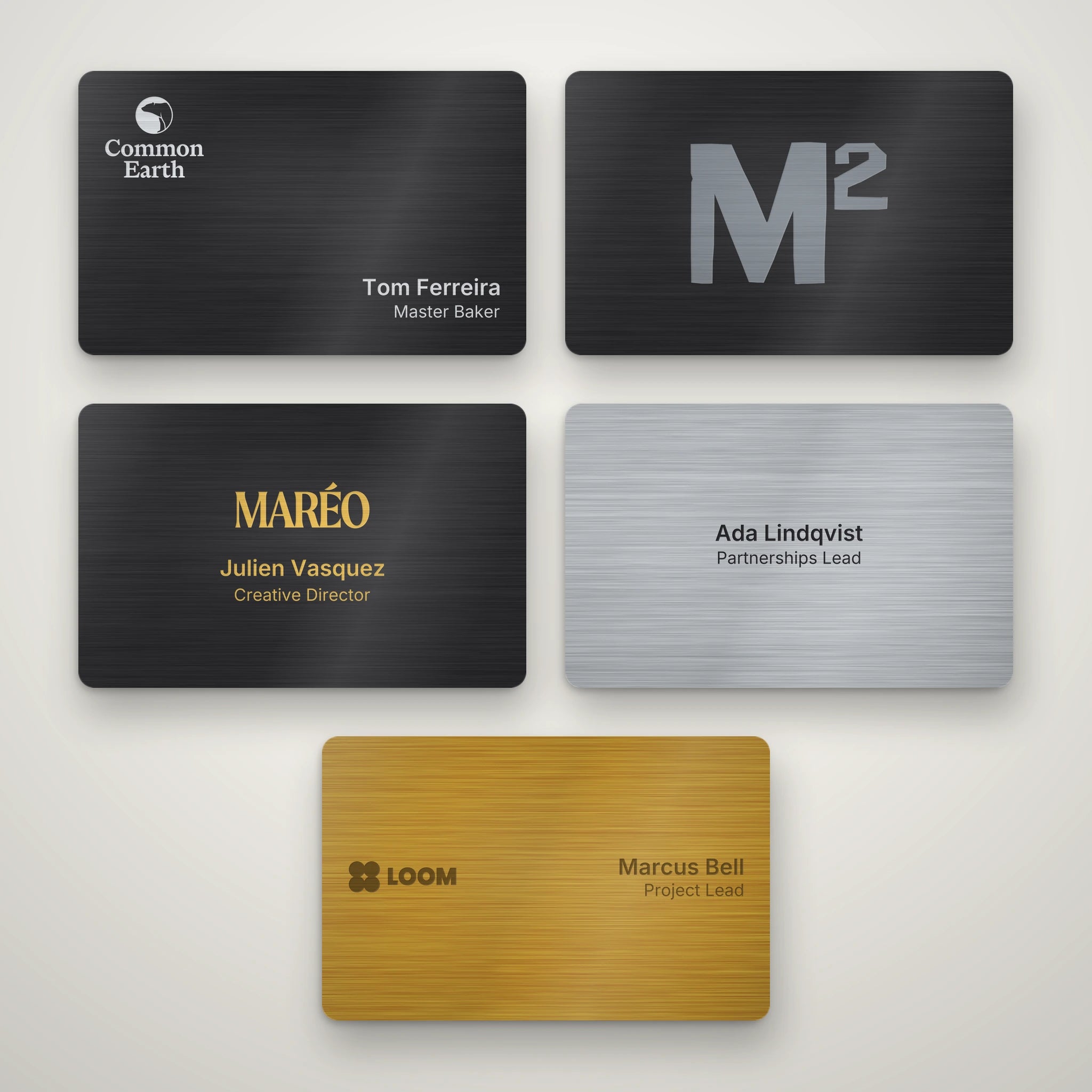
Start with the finish that suits your brand. Blinq Custom Metal offers matte black, brushed silver, and brushed gold.
Think about the whole design before choosing. An understated logo might be all you want on the front. If you’re including your name and role, leave enough room for them to be read comfortably.
Use the preview to judge how your artwork looks against the finish. Engraving produces a single-tone design, so a logo that relies on several colors may need a simpler version.
2. Prepare your logo
Upload a one-color SVG with solid vector shapes and any text converted to outlines. Photos, gradients, shadows, and other effects aren’t supported.
Look for a one-color SVG in your logo files, or ask your designer for one. If you only have a PNG or JPG, a tool like Adobe Express’s SVG converter can help. Check that the result preserves your logo and meets the engraving requirements above before uploading.
Choose the version that stays recognizable at a small size. A logo with a detailed illustration and a tiny tagline may look great on a website but feel crowded on a card. Your main brand mark is often the better choice here.
3. Add your name and arrange the design
Use the customizer’s fields for your name and job title, then adjust the layout in the preview. The front is yours to design; Blinq supplies the QR code on the back.
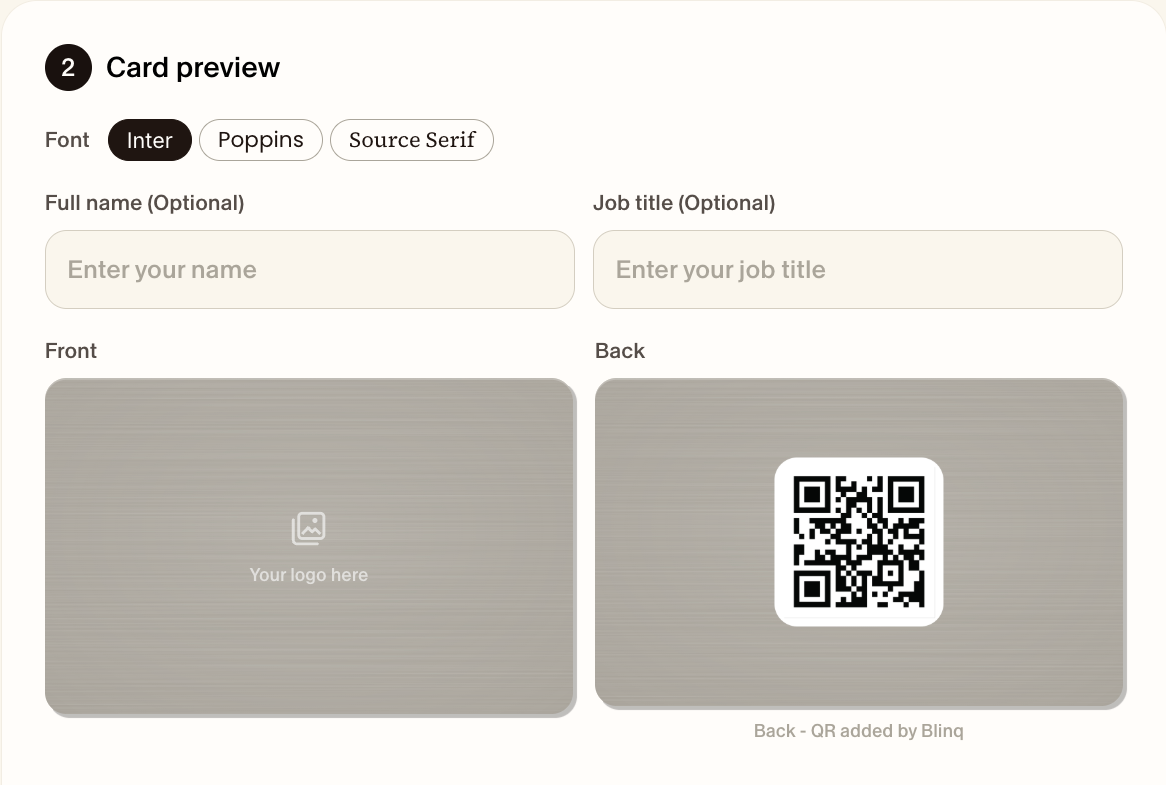
Give each element a clear purpose. Your logo identifies the business, your name identifies you, and your role adds context where it’s useful. You don’t need to fit every contact detail onto the metal.
For example, a consultant could use their logo and name on the physical card, then include their services page and booking link on the digital card. Someone in sales might prioritize a direct phone number and work email on their profile. Design around what you want the next conversation to be.
4. Review your design and place your order
Before approving the proof, check the spelling, alignment, and spacing. View the design at roughly the size of a card rather than relying only on an enlarged preview.
Pay particular attention to:
- Logo clarity: can you recognize the mark without zooming in?
- Text size: is your name easy to read?
- Spacing: does the layout have room to breathe?
- Longevity: are you comfortable having those details engraved?
Keep information that changes regularly on your digital profile. You can swap in a new portfolio or booking link whenever you need; changing an engraved title means changing the physical card.
Once the design is ready, approve the proof and place your order.
5. Set up your digital business card
While you wait for your metal card, create your free Blinq digital business card, or update the one you already use.
Start with your name, role, company, and the contact details you want to share. Add a photo so the person opening your card can put a face to the conversation. Then include the links that help them take the next step, whether that’s viewing your work, visiting your website, or booking a meeting.
Open each link and check your phone number and email address. The physical card may make the first impression, but this is the information someone will use to reach you.
You can start sharing your digital card from your phone before the metal card arrives.
6. Pair your metal card and try it out
When your card arrives, follow Blinq’s NFC pairing instructions:
- Open the Blinq app and its main menu.
- Choose Pair NFC Device and hold the card to the back of your phone.
- Select the digital business card you want to connect.
- Confirm the pairing.
Then try sharing with someone else. Hold the card near their phone’s NFC reader, let them open the notification, and check that the right profile appears. They can save your details and share theirs back. They don’t need a Blinq account.

The QR code on the back gives you another way to share. Once you’ve tried both, you’re ready for your next meeting.
How much does a Blinq metal business card cost?
Blinq Metal is US$49.99, and Blinq Custom Metal is US$79.99. Prices are before applicable shipping and taxes.
Blinq’s free plan includes two digital business cards. Connect your metal card to the one you want to share. No paid subscription is required for basic sharing.
For team orders, Blinq’s Custom card discounts start at 10% for 20-49 cards, rising to 15% for 50-99, 20% for 100-199, and 25% for 200 or more.
Because each person keeps their NFC card, plan around the number of people on your team rather than how many contacts they expect to meet. If you also want centralized management of the team’s digital business cards, explore Blinq Business; the software plan is separate from the physical card purchase.
Frequently asked questions
Are all metal business cards NFC cards?
No. A metal business card can simply have contact details printed or engraved on it. NFC requires a chip and antenna designed into the card. Blinq’s metal cards include NFC sharing and a QR code connected to your digital profile.
Can I make metal business cards at home?
Yes, with suitable metal blanks and compatible engraving equipment. The process depends on the material, coating, and machine. Adding reliable NFC sharing also requires hardware designed to work with metal.
For a personal card or team order, Blinq lets you create the design online and have the finished NFC card made for you. You can focus on your branding and the details you want to share.
Can I change my details after ordering?
You can edit the details on your Blinq digital business card, and future taps or scans will open the updated profile. The engraving stays the same, so keep frequently changing information on the digital card. Updates to the profile don’t automatically rewrite a contact someone has already saved in their phone.
Do metal business cards work with every phone?
NFC sharing needs a compatible phone with NFC enabled. If tapping isn’t available, the person you meet can scan the card’s QR code with their camera to open your profile. They don’t need to install Blinq.
Be ready for the next introduction
Your metal card can carry your brand into the room and help the people you meet take your details with them. Make it yours, connect your Blinq profile, and have it ready when someone asks, “Do you have a card?”


