








.avif)

One of the best ways to boost your brand presence and consideration is with a dynamic email signature. Unfortunately, not every email signature generator can be easily integrated with your Gmail account. That’s why you need to choose one that offers a clear and easy process. This can also be a great way to avoid using a tired or outdated native Gmail signature that doesn’t reflect you or your company well enough.
You can easily integrate your Blinq email signature with your Gmail account. It honestly only takes 10 steps, including creating your signature using the designer tool. If you haven’t done that yet, I recommend learning how to create your email signature first. If you’ve already created it or are still figuring out if a Blinq signature is right for your needs, read through this article to learn how easily you can use Blinq as a free Gmail email signature generator.
Key Takeaways (TL;DR)
- Blinq is the best Gmail signature generator with the highest rating on G2
- You can generate your Gmail email signature in 10 steps using Blinq
- You can copy and paste your Blinq email signature into Gmail
- Any updates you make to your Gmail signature with Blinq will be automatically updated in Gmail
- Blinq’s Gmail email signature generator offers the fastest and most customizable way to create a signature for Gmail
- Companies can automatically manage company-wide signatures, including updates, with Blinq’s admin control and Google Workspace synchronization
- Using a Gmail signature generator provides numerous benefits, including richer media, adding CTAs and links, and time saving
What Are Your Options for Creating a Gmail Signature?
Let’s start with a quick breakdown of how you can create a Gmail signature. Because you don’t necessarily need to use an email signature generator. However, as you’ll see from the comparison table below, it might be the best option if you want to stand out.
Using a Gmail email signature generator is faster and easier than trying to create your own signature in Gmail or via a template. It also offers you more opportunities to make your signature a richer content experience for recipients. Imagery, branded social links, color templates, and other design options help you create the signature you want for your brand.
This is why we’re going to focus on how to use an email signature generator like Blinq in Gmail. Learning this will give you access to a more professional and personal signature.
How to Use Blinq as Your Gmail Email Signature Generator
The process for creating and using your Gmail email signature really boils down to 10 simple steps. This includes creating your signature with Blinq. We’ve included it here as one step, but you can read a more in-depth breakdown on how to create your email signature if needed.
Heads up: You’ll need to do this on your desktop computer, not your phone.
Step 1: Create your email signature with Blinq
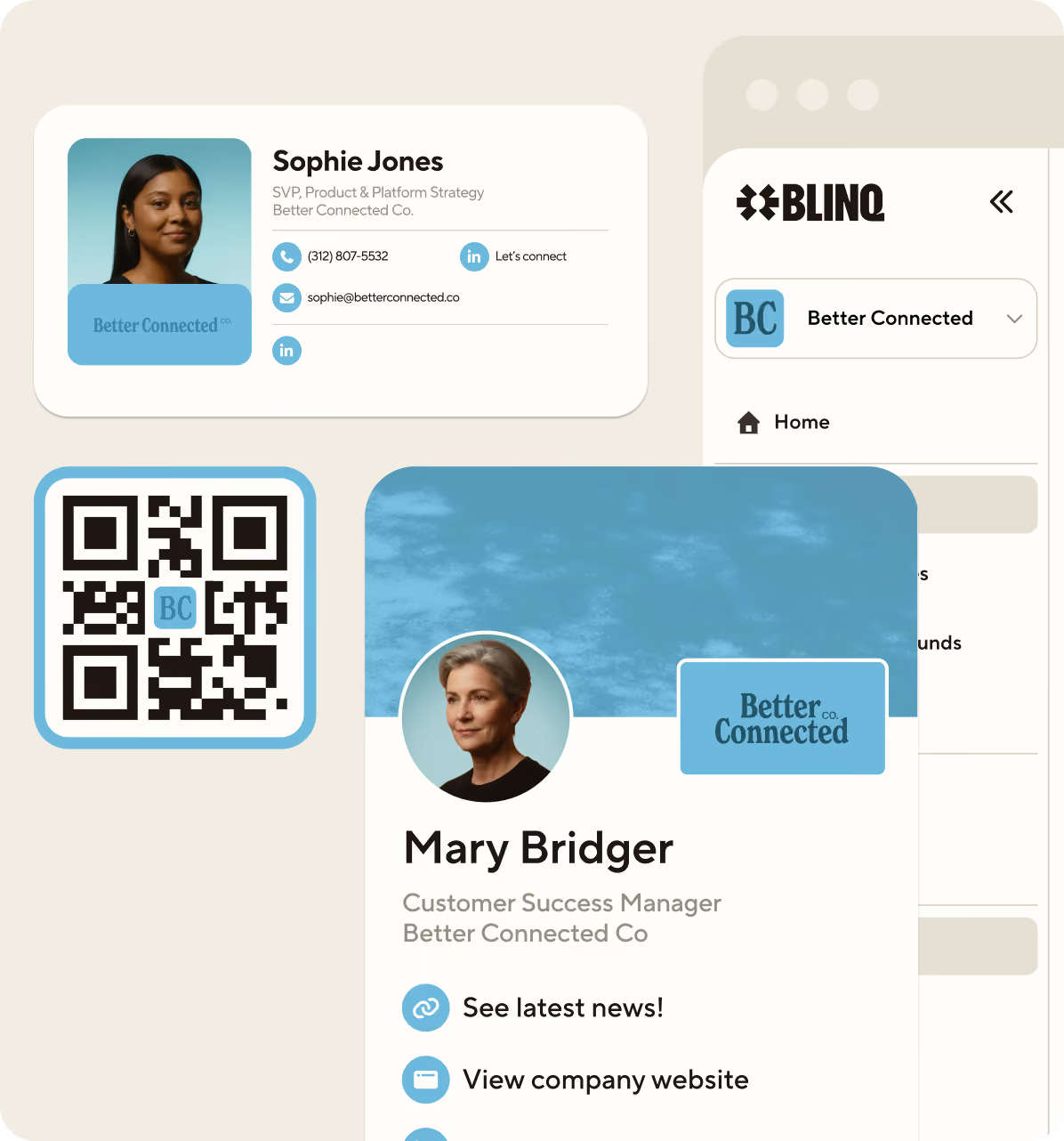
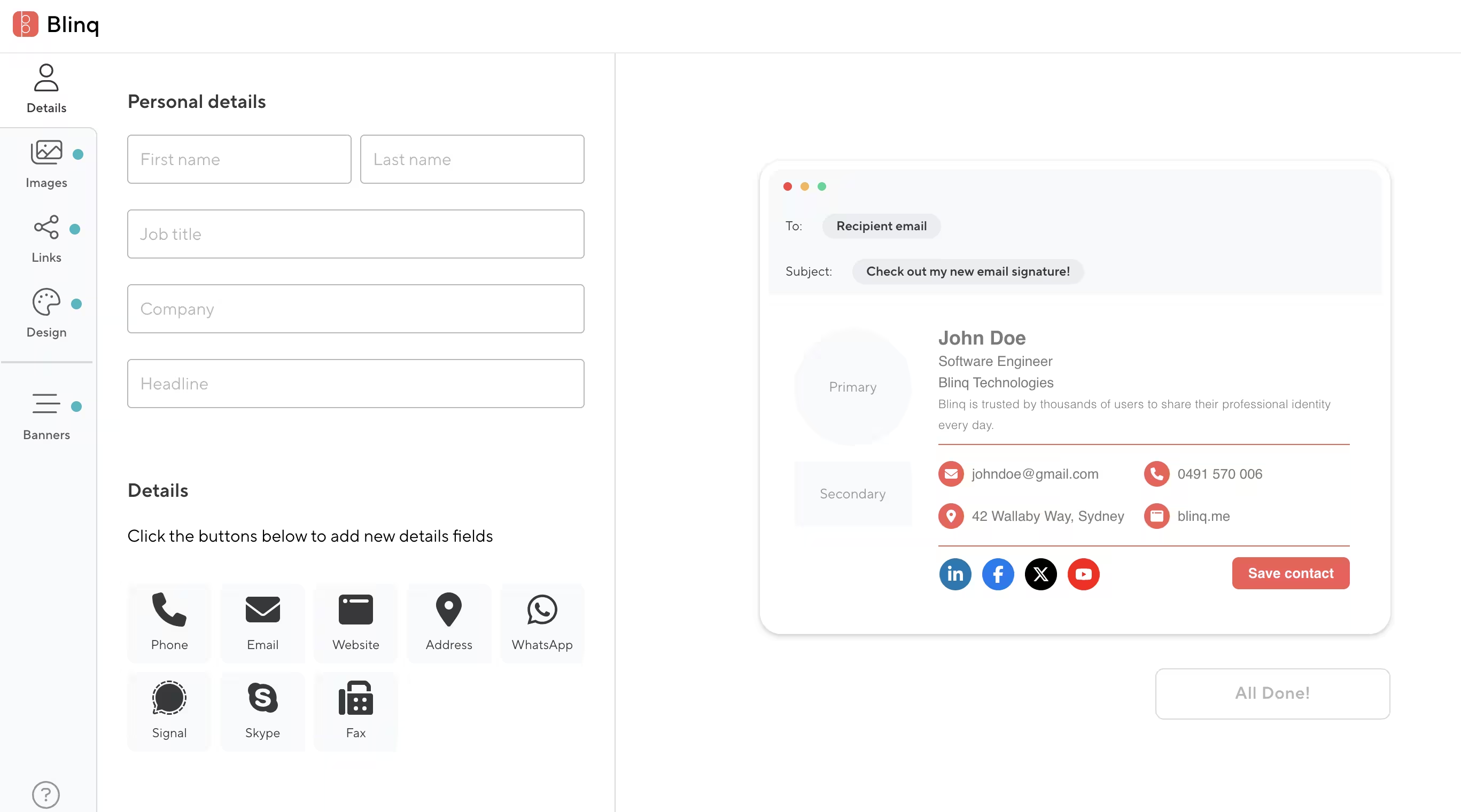
Go to the Blinq email signature creator dashboard to design your signature from the ground up. Our intuitive tool lets you customize the following elements:
- Personal details – Your full name; job title; company name; headline; and contact details.
- Images – Upload and style your company logo and headshot.
- Links – Add links (with tidy buttons) to your social media channels or payment platforms.
- Design – Tailor the color, font, and overall style.
- Banners – Add a promotional banner and environmental and legal footers.
Here’s a snapshot of the creator dashboard interface:
Step 2: Accessing your Blinq dashboard
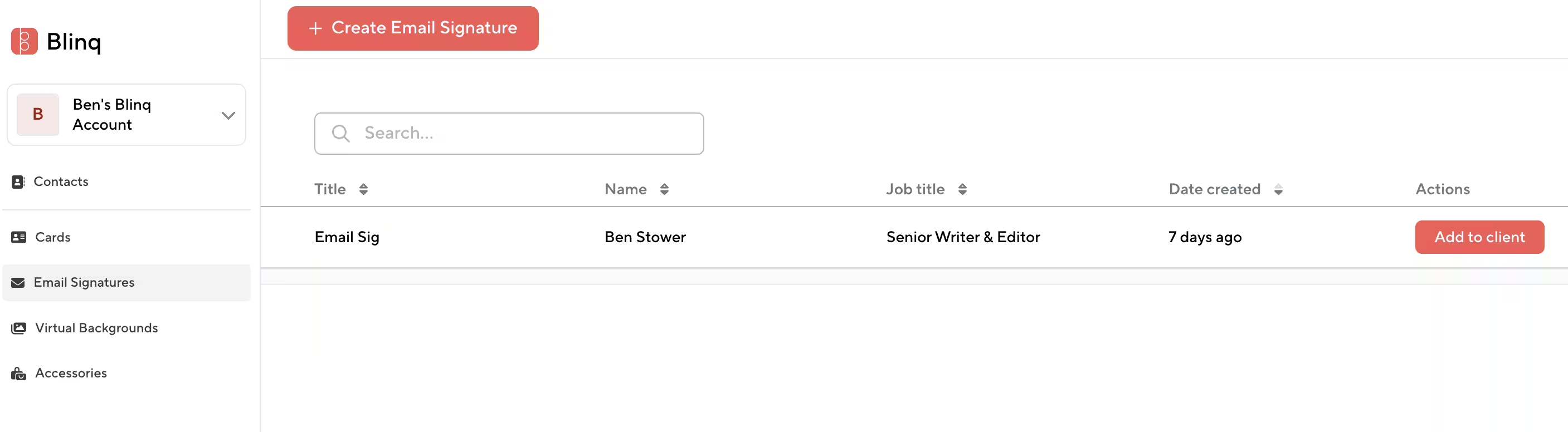
Once you’re happy with your email signature, click the “All Done!” button. You’ll be asked to create a free Blinq account. This gives you access to your Blinq dashboard, where you can access all our services, including digital business cards and virtual backgrounds. Once you’re here, navigate to Email Signatures in the left-hand menu, then click “Add to client”.
Step 3: Copy your Blinq email signature
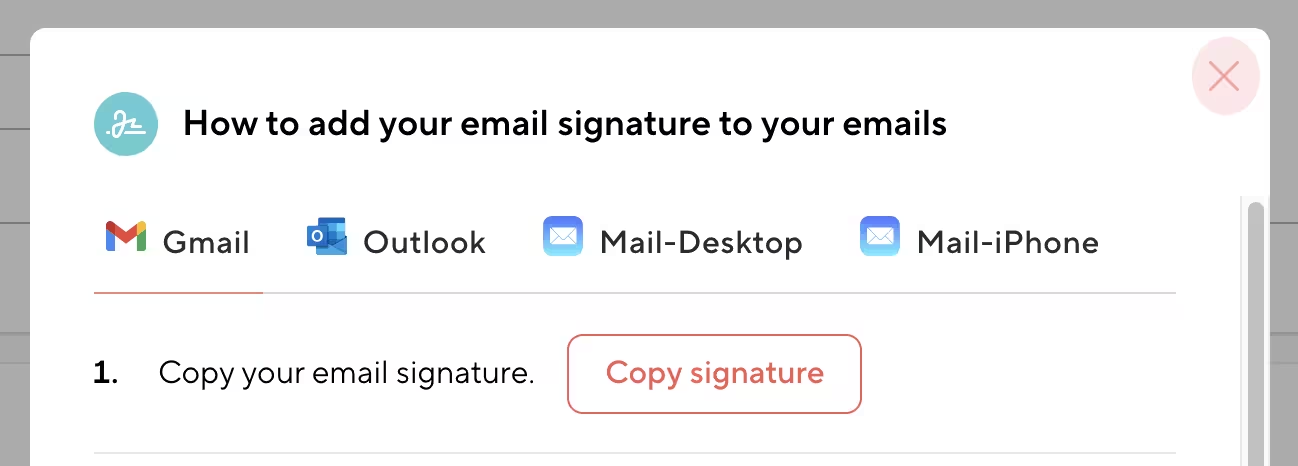
A pop-up should appear giving you step-by-step instructions on how to add your email signature to various email platforms, including Gmail, Outlook, and Apple Mail. Select Gmail on the top menu to bring up the instructions and click the “Copy signature” button.
Step 4: Log into Gmail
Go to your Gmail account and make sure you’re logged into the one you want to pair with your email signature.
Step 5: Go to settings
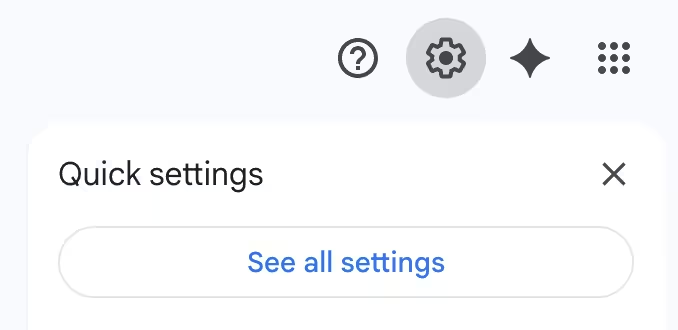
Click on the gear icon on the top right of your Gmail and go to “See all settings”.
Step 6: Go to the email signature settings
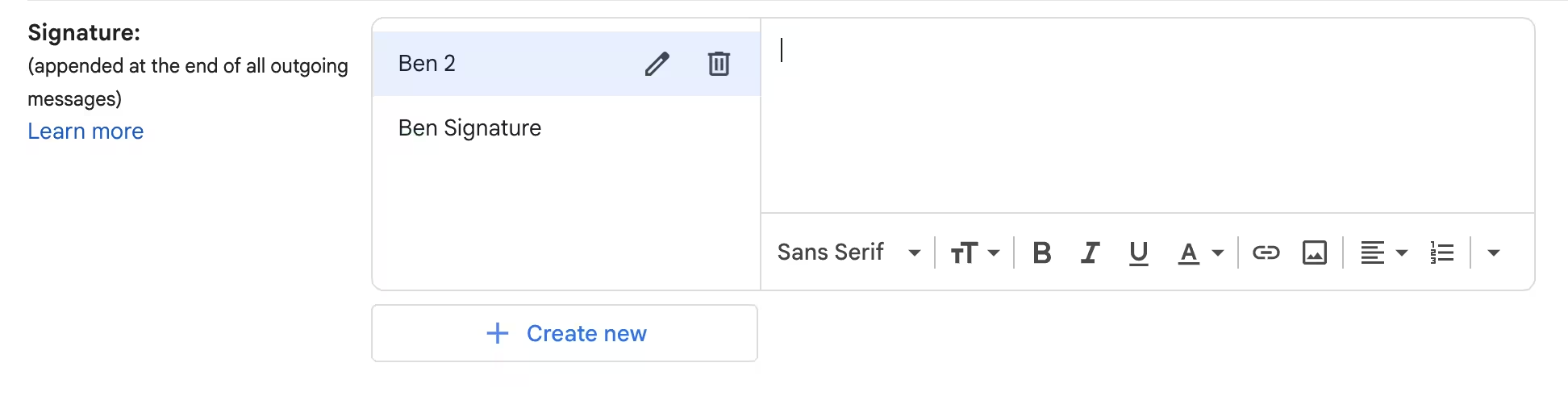
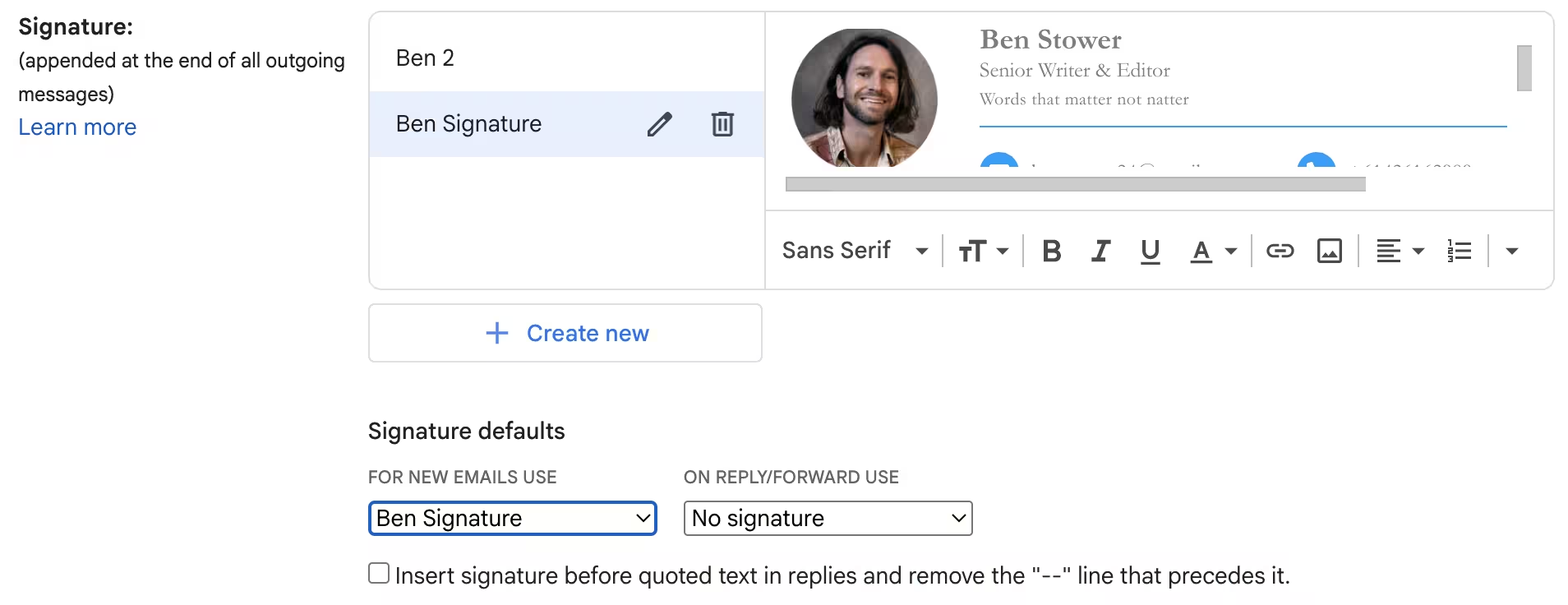
Scroll down to the “Signature” settings section and click the “Create new” button to bring up a blank page for your generated email signature. You can also erase the signature you already have if you don’t want to save it as an option.
Step 7: Name your new signature
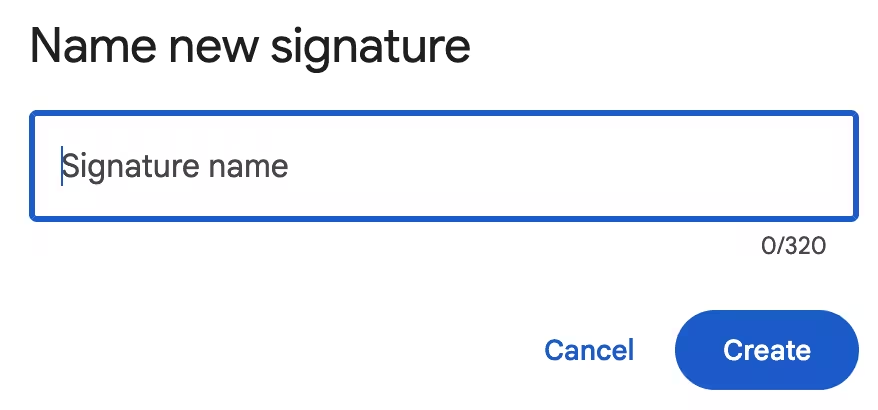
When you create a new signature, make sure you give it a clear name. This is especially important if you have a lot of Gmail signatures, generated or otherwise, on your account.
Step 8: Paste your Blinq email signature
Paste your generated Gmail signature into the empty text box. All of it should appear, including any photos, banners and links. You may have to scroll down to see it all.

Step 9: Make it your default signature
Go to the “Signature defaults” section below the “Create new” button. Make sure your new Blinq email signature is selected as the default signature. You can choose to have it appear only on new emails, only on replies or on both.
Step 10: Save and test it
Scroll down to the bottom of the page and click “Save Changes” to make sure your new email signature is now working in Gmail. It’s always wise to test it first as well before sending any important emails.
How to Make Your Gmail Signature Look Professional
There are a few key elements to remember to include (or not include) if you want your Gmail email signature generator to produce a professional signature. We have a great resource detailing almost 20 professional and personal email signature examples. This might help you better nail down what you want to include on yours. But really you shouldn’t go wrong if you include the elements on the right column while avoiding those on the left column below.
Tips for Designing an Impactful Gmail Signature with Blinq
Even with a tool like Blinq, it still pays to know how to make your email signature impactful. We want to give you the most freedom possible when designing, but there are some elements that are more important than others. Here are some ways you can use our Gmail email signature generator to create an impactful signature that can help you better connect with your network.
- Use strong and purposeful visuals, such as a headshot and company logo, to better present your brand and persona.
- Add your personality to your signature through a thoughtful tagline that’s professional and creative.
- Promote connectivity through social links that help your network learn more about you and your brand.
- Showcase your brand, products or initiatives through a promotional banner.
- Align your signature’s font and color scheme with your company for a more unified and professional look.
- Add links to core company pages to help drive valuable traffic and turn emails into another marketing channel.
- Make your emails more purposeful by including a specific CTA that aligns with your brand goals.
How to Roll Out a Blinq Gmail Signature Generator Across Your Company
It’s one thing to create a Gmail signature for yourself and another thing entirely to roll out Gmail signatures across your entire company. Fortunately, Blinq offers a couple of options for organizations wishing to create professional and uniform email signatures that don’t require resource-heavy manual updates every time you want to change a detail, big or small.
Both our Business and Enterprise packages let you create admin-controlled email signatures synced with Google Workspace. This means you can manage your entire company’s email signatures from one centralized management system. Sure, everyone in your company could make a free Gmail signature with Blinq. However, everyone would also need to update their email signature every time you want to make a change.
Some people might forget while others might make changes that don’t align with the rest of the team. This could greatly hinder your email communication and impact. At least with a centralized admin, you can be sure everyone’s emails are updated and aligned. It’s the most efficient way to roll out Gmail signatures across your entire organization.
Benefits of using a Gmail email signature generator
Here are some common benefits of using a free Gmail email signature generator, like Blinq:
- Helps you make a strong and professional impression with your network.
- Can turn every email into a marketing opportunity that could generate new leads.
- Can help you attract more people to your social media profiles.
- Enterprise-level security keeps all your data protected from phishing scams.
- Rich media, such as a headshot or company logo, can help you present yourself better to potential clients.
- A centralized admin-controlled system means no one’s email signature in your company will contain outdated information.
- It’s a lot faster and more flexible than manually creating a signature in Gmail.
- Saves you and your company time on unnecessary admin when making updates.
- Can promote product launches, new case studies or core services through a promotional banner.
- Gives you more freedom to present CTAs that can make your emails more purposeful.
- Lets you shorten the buyer journey by including links to payment platforms or somewhere clients can make appointments.
Frequently Asked Questions
Why is my generated email signature not appearing in Gmail?
Most of the time, this is because you haven’t selected the right Gmail signature as your default. This is Step 9 in the guide above and it’s an important one. If you have the wrong signature or no signature as your default, the one you’ve created won’t appear on your emails.
Go back into your Gmail settings and make sure you have your created signature set and saved as your default. Be sure to click “Save Changes” at the bottom of your settings menu to lock it in.
How do I automatically generate a Gmail email signature?
Unfortunately, you can’t automatically generate a Gmail email signature (not an impactful one anyway). However, the best Gmail signature generators, like Blinq, let you design one quickly so it’s as close to automatic as possible.
Follow the step-by-step guide above to generate your signature for Gmail – it only takes 10 steps. You’ll be able to create one that’s more professional and more you.
Can I add images to my Gmail signature?
Of course! With Blinq, you can add up to two high-quality images to your Gmail signature. We recommend adding a profile photo and your company logo for a good mix of personal and professional.
However, you can add an alternative photo if you’d like, such as something that sums up who you are as a professional. You can also add a banner at the bottom, either as a promotion or another image.
Can I swap between multiple email signatures in Gmail?
Yep, you can change your email signature in Gmail simply by going to your Signature settings and changing your default signature. Both Blinq and Gmail let you save multiple email signatures, so you can copy the ones you’ve created with Blinq across to Gmail and save them as individual signatures.
You just select the one you want to use as your default, click “Save Changes” at the bottom of settings, and you’re good to go. Just check you’re using the right signature before sending any emails.
Can I use a template for my Gmail email signature?
You can use a template for your Gmail email signature. However, this might be limited in what you can add and how much you can personalize it. It’s more effective and professional to use a free Gmail email signature generator, like Blinq.
We provide a structural template, but you get to decide what you add, such as images, contact details, links, banners, and CTAs. It gives you more creative freedom and ways to align your signature to your personality or organization.
How can I easily manage company-wide Gmail signatures?
Blinq, one of the best Gmail email signature generators (just ask over 8,800 professionals on G2) lets you easily manage your company’s signatures. Choosing the Business or Enterprise plan gives you access to admin-controlled email signatures synced with Google Workspace.
This makes it much easier to ensure every signature in your company is aligned and up to date. Any additional changes you make (e.g. change of address or phone number) automatically get applied across everyone’s emails as well, reducing the risk of outdated information and related headaches.
How do I update my Gmail email signature?
If you have a free Blinq account and have created your signature on our dashboard, you can edit it in the dashboard. No need to do anything else – it will update automatically in your Gmail account.
If you don’t have a Blinq signature, you can update your Gmail signature by logging into your Gmail account, clicking on the gear icon, selecting “All settings”, and updating the Signature section. You can edit your signature or create a new one in Gmail.