

.avif)


A LinkedIn QR code is a scannable code inside the LinkedIn mobile app that opens your profile the moment someone scans it. It lets you connect in person without spelling out your name or typing a URL.
Finding your code takes a few taps in the LinkedIn app, and you can make one on desktop from your profile link. One thing worth knowing before you share it: a LinkedIn QR only opens your profile, so the other person walks away with a link, not your details. When you want the scan to save your contact straight to their phone, a digital business card does exactly that. This guide covers both.
Quick answer: Your LinkedIn QR is in the app, under the QR icon in the search bar. If you want the scan to save your contact instead of just opening a profile, try a digital business card like Blinq's.
Key Takeaways (TL;DR)
- Your code is already there. Every LinkedIn profile has a personal QR code in the mobile app. You find it, you don't build it.
- Get one in seconds. Pull up the built-in code in the app on iPhone or Android, or make one from your profile link with a free generator on desktop.
- It opens your profile, and stops there. A LinkedIn QR takes people to your profile. It doesn't save your details to their phone or follow up for you.
- Scanning is quick. Scan someone else's code from the same QR screen, and you land on their profile to connect.
- For a scan that saves your contact: a digital business card like Blinq's goes further. Its QR offers to save your details to the other person's phone, needs no app for the recipient, and is free for individuals.
What is a LinkedIn QR code?
A LinkedIn QR code is a square barcode that holds a link to your LinkedIn profile. Scan it with a phone camera or the LinkedIn app and it opens your profile, where the other person can connect or follow you. LinkedIn generates it from your account, so there's nothing to set up. It lives in the mobile app rather than on the desktop site, which matters later when you want one on a computer.
Because it points at your live profile, a LinkedIn QR is a fast way to hand over your profile link, and the same code keeps working after you change your name, photo, or headline. That makes it great for one thing: growing your network fast. Someone scans it, your profile opens, and you're connected. On the other hand, what it doesn't do is leave them with your number or email, which is why people use a different kind of code when they want the scan to save more than a link.
How to find your LinkedIn QR code in the app (iPhone and Android)
To find your LinkedIn QR code, open the LinkedIn app, look for the QR icon on the right of the search bar at the top, tap it, and choose My code. Your personal QR appears, ready to show or save. It is in the same place on iPhone and Android, with only small differences in the button labels. LinkedIn's own help article on QR codes covers the basics too.
On iPhone
To find your LinkedIn QR code on iPhone, open the app and go to the search bar at the top of your home feed. From there it takes a few taps:
- Tap the search bar at the top of the screen.
- Tap the QR icon on the right of the search bar.
- Tap My Code to show your personal QR code.
- To keep it, screenshot the screen or use the save or share control to download the image.
Your code is now in your camera roll, ready to show on your screen or send in a message.
On Android
To find your LinkedIn QR code on Android, the path is the same, with slightly different labels. Open the app and start at the search bar:
- Tap the search bar at the top.
- Tap the QR icon in the search bar.
- Open the My code tab to show your QR code.
- Use the save or share control to download it to your phone.
Once it's saved, your code is ready to share the same way as on iPhone.
How to make a LinkedIn QR code on desktop (with a free generator)
LinkedIn's built-in QR code is a mobile app feature, and LinkedIn's help pages describe no desktop version. So on a computer you make one from your profile link instead. This works from any device, and it's also the answer to "how do I generate a QR code for my LinkedIn profile" whatever you're on. You copy your profile URL, then turn it into a code with a free QR generator.
- Open your LinkedIn profile in a browser and copy the URL from the address bar, or copy your public profile link from your profile's contact info.
- Paste the link into a free online QR code generator. Search for one, pick a well-reviewed option, and check it lets you download a high resolution image.
- Download the code as a PNG for screens or an SVG for print.
Your public profile link is the one to use, and LinkedIn lets you find or customize it from your profile settings. Most generators also let you add a logo or a brand color if you want the code to look more like you. Styling only changes how it looks, not what it does. A code made this way always points wherever that link points, so keep your profile URL current and the code keeps working.
How to share, save, and print your LinkedIn QR code
Once you have your LinkedIn QR code, there are three ways to put it in front of someone. Show it live on your phone for them to scan, save it as an image to send later, or export a print quality version for anything physical. Which one you reach for depends on whether the moment is in person, online, or on paper.
- Show it live: pull up My code in the app and hold your screen out for the other person to scan.
- Save it: screenshot the code or download it, so you can drop it into a message or a document.
- Print it: use a high resolution export. A PNG is fine for screens, and an SVG stays sharp at any size for print.
For anything printed, the SVG from the generator method above keeps the edges crisp. That matters more than it sounds, because a blurry code is a code that won't scan.
How to scan someone else's LinkedIn QR code
Scanning someone's LinkedIn QR code takes a few seconds from the same screen where your own code lives. Open the QR screen in the app, switch to the scan view, and point your camera at their code. LinkedIn takes you straight to their profile, where you can connect or follow them.
- Open the LinkedIn app and tap the QR icon in the search bar.
- Switch to the Scan tab.
- Point your camera at the other person's code, or scan a saved image from your photos.
- Tap to connect or follow once their profile opens.
Because the code opens their profile rather than saving their details, you'll both still be inside LinkedIn afterward. That's the trade every LinkedIn QR makes.
What a LinkedIn QR code can and cannot do
A LinkedIn QR code is free and always in your pocket, which makes it a great way to grow your network the moment you meet someone. It helps to be clear about where it stops, so you can pick the right tool for each situation. What it does well is simple: it opens your profile, fast, without you reading out a name or a URL.
Where it stops is worth knowing:
- It lives in the mobile app, so there's no built-in version on the desktop site.
- When someone scans it, it opens your LinkedIn profile. It doesn't save your name, number, or email to their phone.
- The other person still has to tap connect and remember to follow up, so nothing lands in a contact list or a CRM on its own.
Your LinkedIn QR opens a link, a digital business card saves your full profile
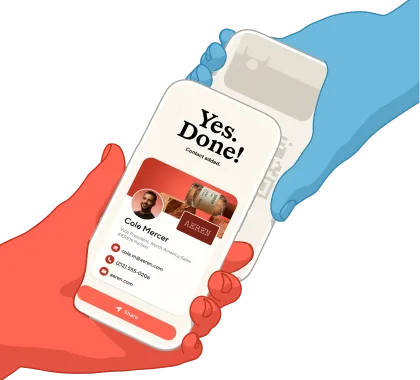
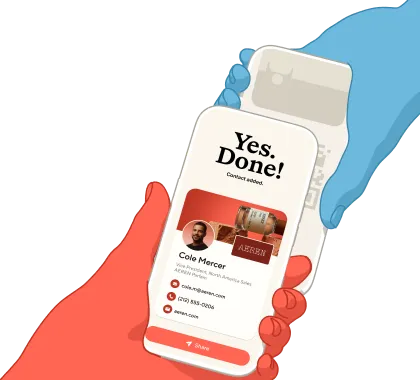
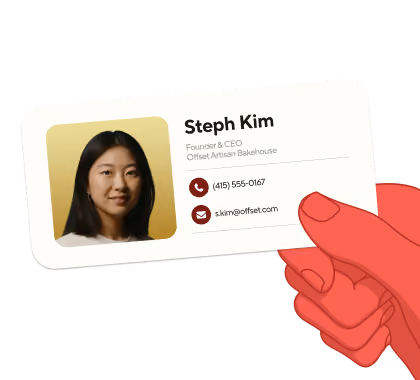
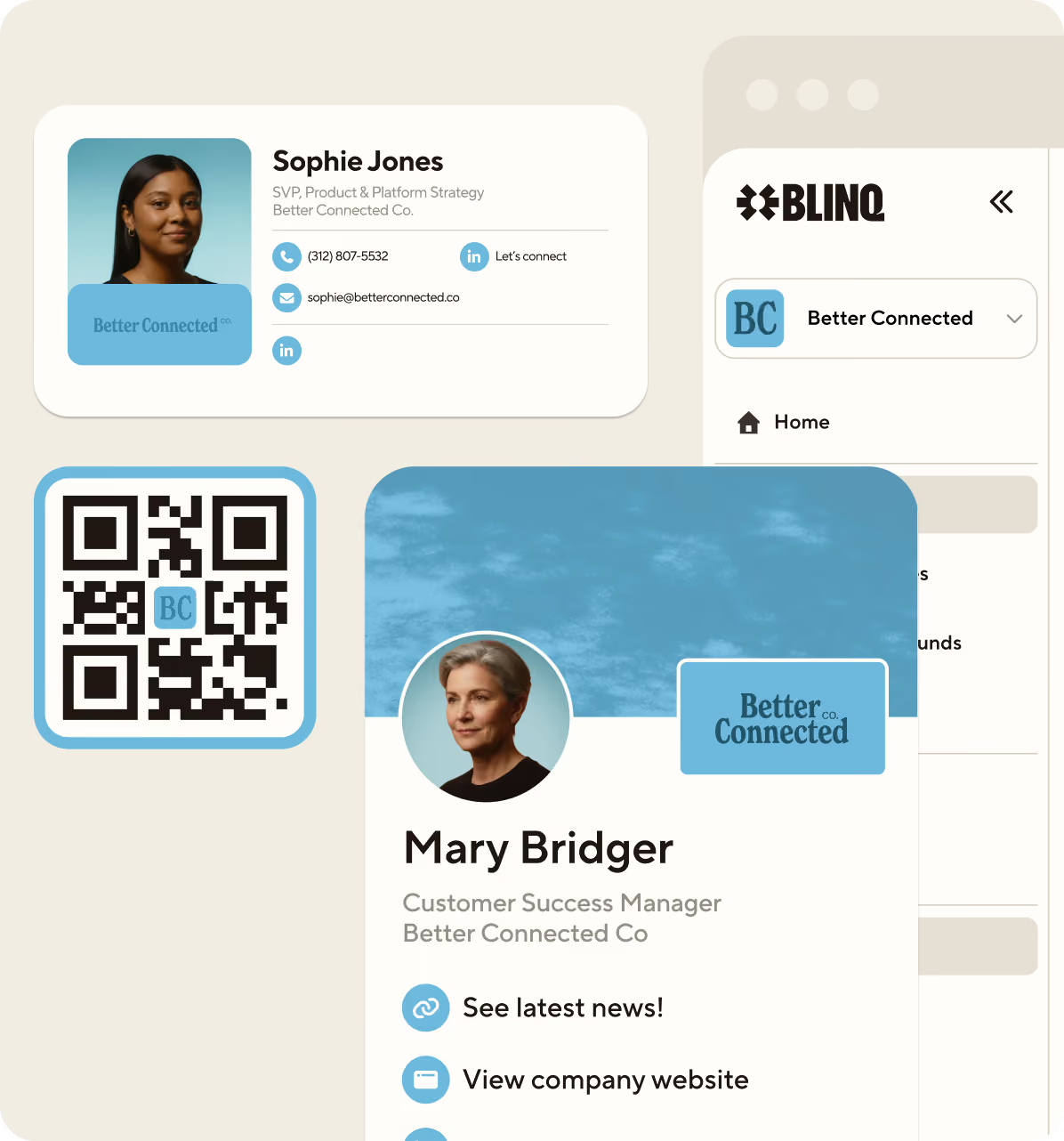
A digital business card is a shareable profile with its own QR code, and the difference shows the moment someone scans it. Instead of opening a web page, the scan offers to save your full details straight to their phone: name, title, number, email, and links. The person receiving it needs no app to save you, and you can update your details any time without reprinting anything.
Where a LinkedIn QR opens a profile, Blinq's digital business card offers to save the contact. Its QR prompts the other person to save your details to their phone, adds to Apple Wallet or Google Wallet as a pass for easy sharing, and is free for individuals.
If your goal is a quick connection on LinkedIn, the native code is perfect. If you want the scan to leave people with your details already saved, a digital business card is built for that. To weigh up your options, see how the best ones compare side by side.
Where to use your LinkedIn QR code
A QR code is only useful where people can actually scan it, so put yours where introductions happen. The same code works across all of these situations, whether it's the native LinkedIn code or one you generated from your profile link.
- At events and conferences: show it on your phone, or print it on your name badge so people can scan while you talk.
- In your email signature: add the image so anyone you email can connect in a tap.
- On a slide or webinar screen: drop it onto your closing slide so a whole room can connect at once.
- On a printed business card: put it on the back so a paper card still leads somewhere digital. Here are the tips for putting a QR on a business card.
- Saved on your phone: keep the image in your photos so you can show it on your screen the second someone asks.
FAQs
Does every LinkedIn account have a QR code?
Yes. Every LinkedIn member profile comes with its own personal QR code, and you'll find it in the mobile app. You don't create it or switch it on. LinkedIn generates it from your account, so the moment you have a profile you have a code, ready in the search bar under the QR icon.
Does a LinkedIn company page have a QR code?
Personal profiles have a built-in QR code, but LinkedIn documents that code for personal profiles, not company pages. To make a code for a company page, copy the page's URL and paste it into a free QR generator, the same way you'd make one on desktop. That gives you a scannable code that points straight to the page.
Do you need the LinkedIn app to open someone's QR code?
Not necessarily. A LinkedIn QR code holds a link to a profile, so a phone camera can often open that profile in a browser. To connect, follow, or message from there, the smoothest path is the LinkedIn app.
Create your free digital business card
You've got your LinkedIn QR code ready for in-person introductions. When you want the scan to do more than open a profile, a digital business card saves your contact for the person you just met. You can create your free digital business card with Blinq in a couple of minutes.